When loading data into VivoQuant, you might notice that the images appear upside-down or squished in the Display.
Mirroring
Left/Right Mirroring
VivoQuant allows you to choose between two Left/Right orientation options: Neurologist (LR) and Radiologist (RL).
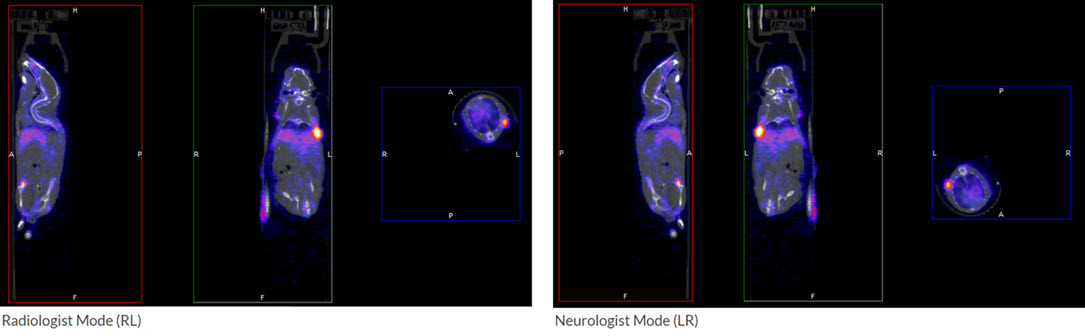
To select an orientation mode, navigate to Tools → Configuration → Display, and use the Orientation drop-down menu to choose the desire orientation option.
Head/Feet Mirroring
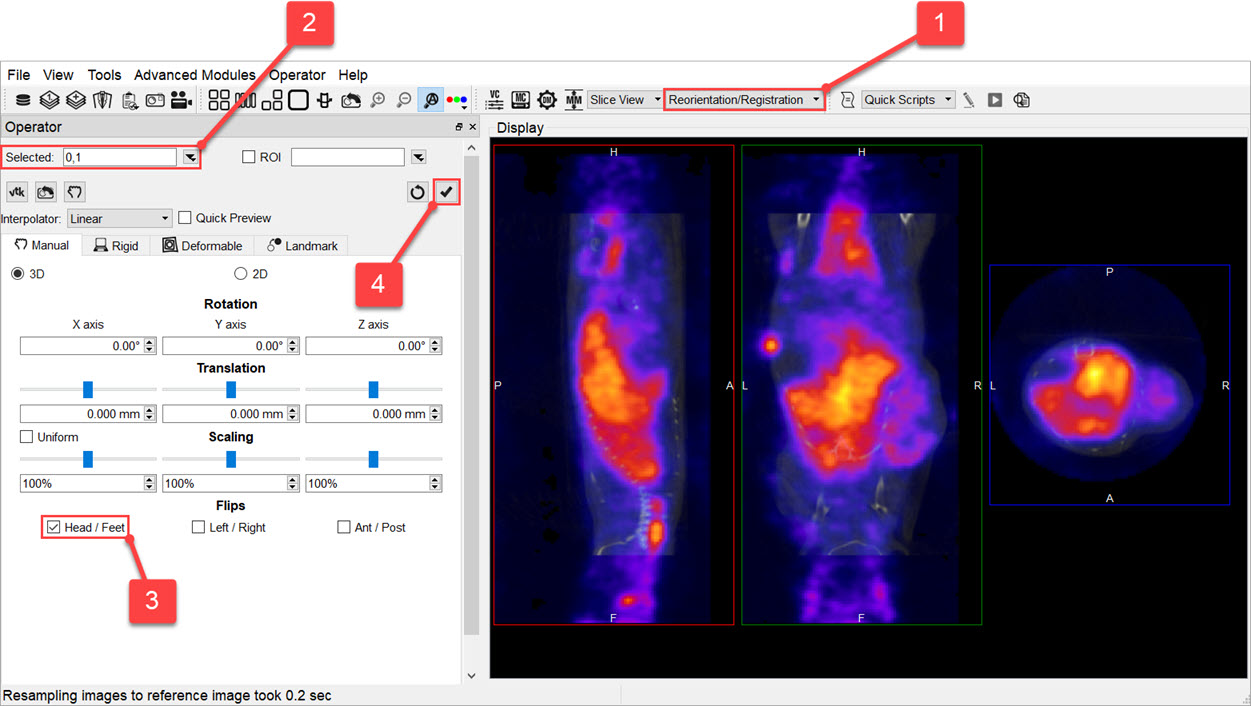
If you notice that your images appear upside down, you can change the Head/Feet orientation by following these steps:
-
Navigate to the Reorientation/Registration operator.
-
Select all the images in your dataset.
-
Check the Head/Feet checkbox.
-
Click the checkmark
 button to apply your changes.
Distortion
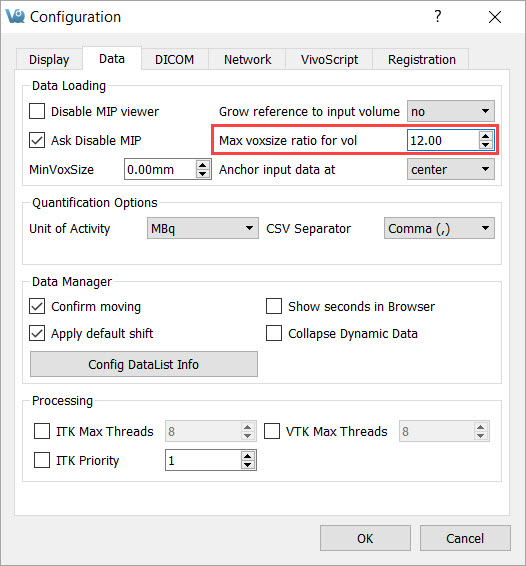
If you notice that your images appear distorted, they might be loading as planar images. If the voxel size ratio for a non-planar image is greater than your configured maximum ratio, VivoQuant forces the image to load as a planar image. Increasing this maximum value will prevent this distortion.
To do this, navigate to Tools → Configuration → Data, and increase the number for the Max voxsize ratio for vol field.