The DICOM configuration tab allows the user to select their default DICOM repository, and configure the DICOM cache.
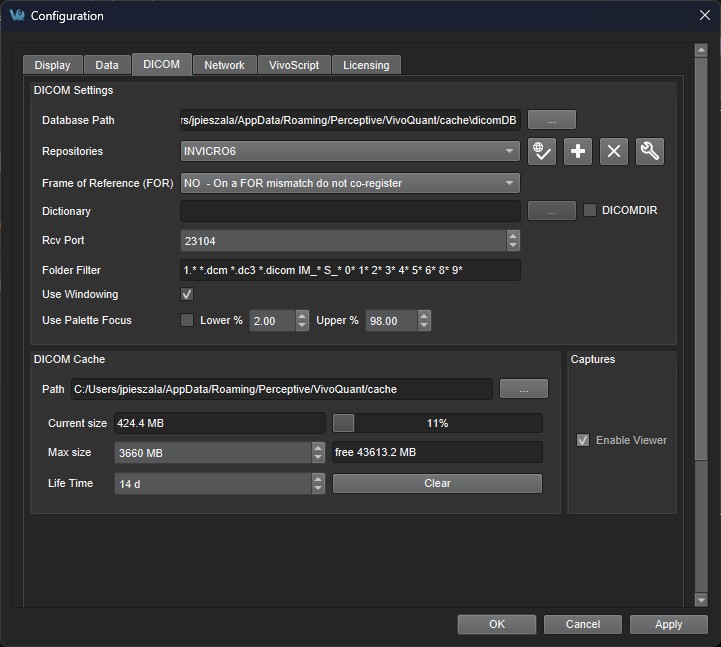
The DICOM panel in the Configuration dialog box provides the most in-depth DICOM information available in VivoQuant. The DICOM panel consists of three sections: DICOM Settings, DICOM Cache, and Captures.
DICOM Settings
| Option | Description |
|---|---|
| Database Path | Location of local DICOM database. Allows optimized internal access to the Mediso DICOM database. See Optimized local access, for details. |
| Repositories | List of available repositories. The bank of buttons immediately beneath the pulldown menu operate on the selected repository in this field: |
 |
Checks connection to DICOM repository. Local folders are verified to exist and a C-ECHO is sent to DICOM servers. |
 |
Adds a new repository |
 |
Deletes selected repository |
 |
Opens the DICOM repository editor DICOM repository editor |
| Dictionary | Shows list of additional dictionaries used by the DICOM library. Please set environment variable DCMDICTPATH to set this value. For more information on the DICOM dictionary, see DICOM Dump |
| Rcv Port | Port over which the DICOM peer sends data. |
| DICOMDIR | Checking this box enables support for DICOMDIR files. |
| Folder Filter |  Allows users to specify the type of DICOM files loaded into VivoQuant. Users can configure loading extensionless dicom data by adding a space and * to the end of the default settings: |
| Frame Of Reference (FOR) | 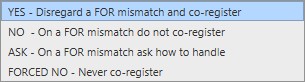 A Frame of Reference (FOR) is a coordinate system that defines the spatial relationship of images within a series. It also allows images from multiple series to share the same FOR. VivoQuant provides several options for handling FOR mismatches: Yes: If a FOR mismatch is detected, standard co-registration is still applied as if the images shared the same FOR. No: If a FOR mismatch is detected, image positioning information is not used during co-registration. Ask: If a FOR mismatch is detected, a dialog is shown allowing the user to choose between Yes or No. Ignore: Completely ignores FOR and positioning information. This behaves like No, even when the FOR matches between images. |
| Use Windowing | If enabled, the palette extents will be adjusted according to the image’s Window Center and Window Width. If disabled, the palette window will remain as it was last set. |
| Use Palette Focus | If enabled, the palette sliders are set automatically on initial data load using the Lower and Upper percent values. The software builds an intensity histogram of the image, identifies the most common intensity (assumed to be background, such as air or zero-valued voxels), and excludes voxels near that value. The Lower and Upper percentiles are then computed from the remaining foreground voxels. For multi-frame or dynamic data, all frames are included in a single calculation. Results are approximate, to within about 1/512 of the image’s intensity range. Lower must be less than Upper, and both must be between 0 and 100. If a focused window can’t be determined (for example, the image is uniform or has no distinct foreground), the full data range is used. Images without a dominant background value may produce unexpected windows; disable this option if so. |
DICOM Cache
The DICOM cache allows for the storage of frequently used data sets locally, thus improving load time into VivoQuant. Every time VivoQuant is started, it checks the current size of the cache against the maximum cache size. If the current cache size exceeds the maximum cache size, then older files (those opened least recently) are removed.
| Option | Description |
|---|---|
| Current Size | Size in Mb of the data currently stored in the DICOM Cache. The percentage to the right of the field indicates how close the cache is to capacity. |
| Max size | Maximum amount of memory that can be made available for the DICOM Cache (default = 1000.0 MB). |
| Life Time | Length of time over which data will be stored in the DICOM Cache (default = 14 days). |
| Clear | Empties the DICOM Cache. |
Captures
Enables the Capture Viewer.