The VivoQuant Configuration window has several panels that provide access to customizable features as well as important licensing and set-up information.
Getting There
Windows and Linux
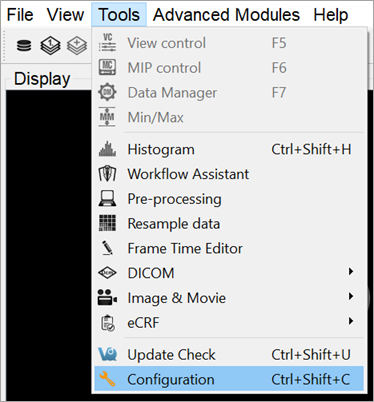
The Configuration window is accessible from the Tools menu under Configuration or by using the keyboard shortcut Ctrl+Shift+C.
MacOS
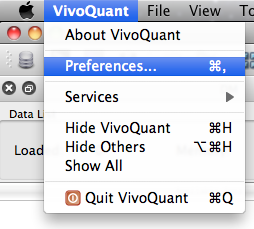
On Mac, the Configuration window is accessible from the VivoQuant menu under Preferences or by using the keyboard shortcut ⌘ + ,.
For more on keyboard shortcuts in VivoQuant, see Keyboard Shortcuts.
Settings migration
Users who have installed VivoQuant 5 or earlier on their computer will be given the option to migrate settings upon startup to ease the process of upgrading. Migration is optional. If the user decides later to migrate settings from the older version, they can do so from the Help menu. This will reset the startup check and close VivoQuant after a warning dialog.
Configuration Panels
The Configuration window consists of six panels: