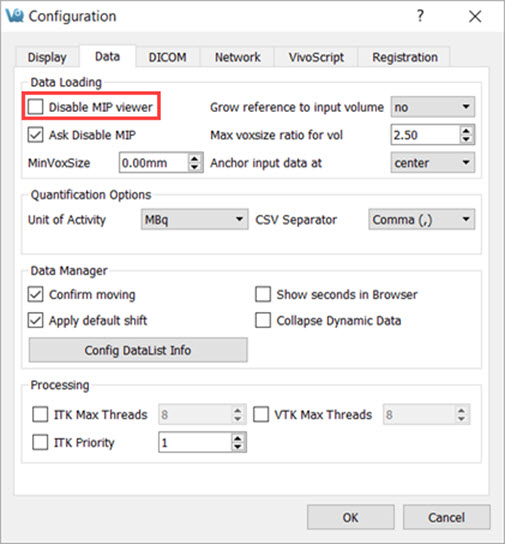
If you can’t see the MIP view or 3D rendering of your data, make sure that MIP Viewer is enabled the in your VivoQuant instance. To do this, navigate to Tools → Configuration → Data, and uncheck the Disable MIP viewer check box.
Further Troubleshooting
If, after enabling the MIP Viewer via VivoQuant’s configuration, it still doesn’t appear, or if the Disable MIP viewer checkbox is greyed out, try the following possible solutions:
Update graphics drivers
OpenGL 3.2 support is required for the MIP to work. For more information on minimum hardware requirements for VivoQuant, see Hardware Recommendations. This should usually be very rare in most environments - a user is most likely to encounter this if graphics drivers are not installed or up to date.
Check for Planar Data
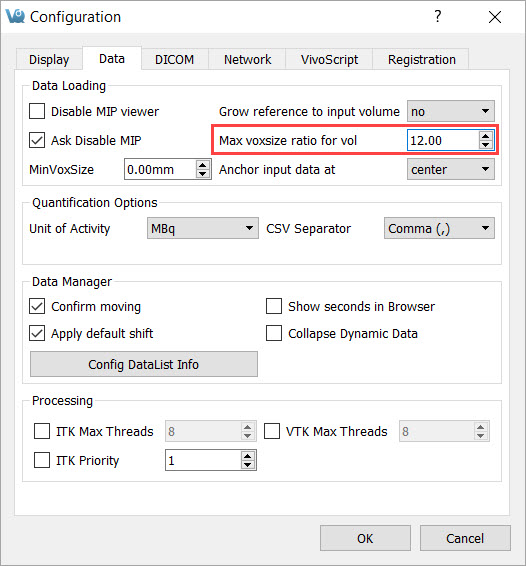
A MIP cannot be generated with planar data. Note that, even if your data is not planar, VivoQuant might interpret it as such if the Max Voxsize Ratio is less than that of your image. You can increase the ratio by navigating to Tools → Configuration → Data, and increasing the number for the field Max voxsize ratio for vol.
Check Internal Settings
If a previous run of VQ failed to set up the MIP, a setting might be preventing further attempts to create it. To reset this setting, follow the below steps:
- On Windows: Open the Registry Editor and navigate to:
Computer\HKEY_CURRENT_USER\Software\Perceptive\VivoQuant\Data. Check that thedisableMIPVieweris set totrue.
If you need to set the correct key value, right-click the key, select Modify and type false in the Value data field. You will need to restart VivoQuant for the change to take effect.
- On macOS: open the Terminal and run the following command:
defaults write com.perceptive.VivoQuant "Data.disableMIPViewer" 0to re-enable the MIP.